How to Upload Audit Preparation Documents in CA Connect
Learn how to efficiently upload and manage your required audit documentation through the CA Connect portal. You must already have an ASME.org account and CA Connect Admin Role access, and you must have already submitted an application. To create an ASME.org Account, please review the “Log In to CA Connect” guide.
1. Navigate to the CA Connect Home Page.
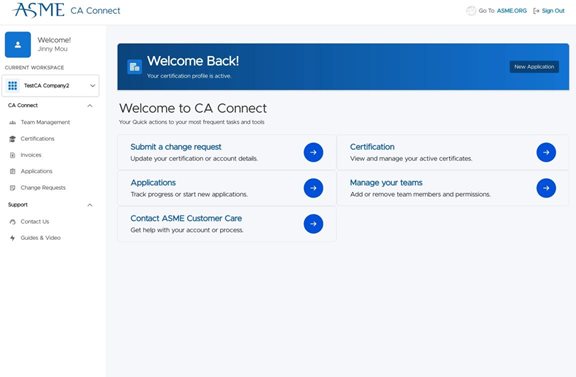
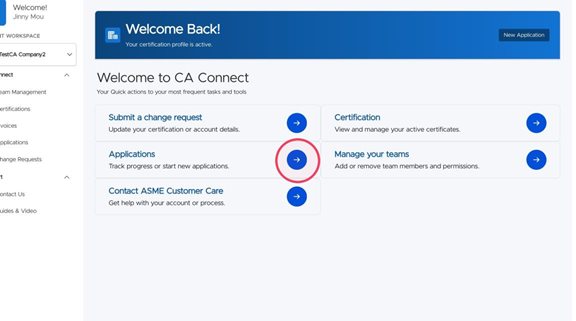
2. Click "Track progress or start new applications" to find your application in progress.
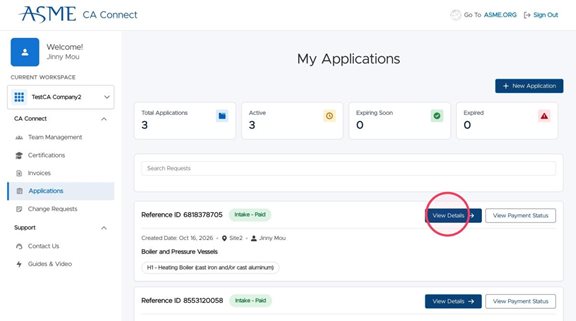
3. Click "View Details" on your active application.
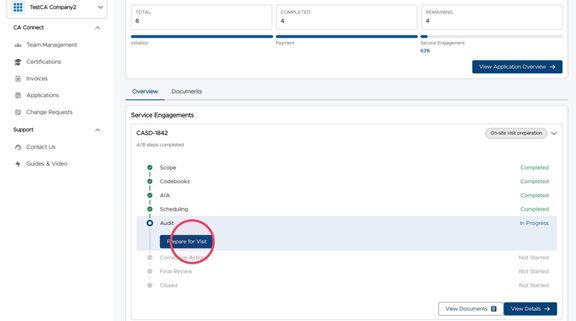
4. Click "Prepare for Visit"
5. You will need to upload one or more documents to the portal in preparation for the audit. Types of documents to upload are Operating Procedures, Manuals, and technical records. Note the portal supports only PDF files up to a maximum of 10MB per file.
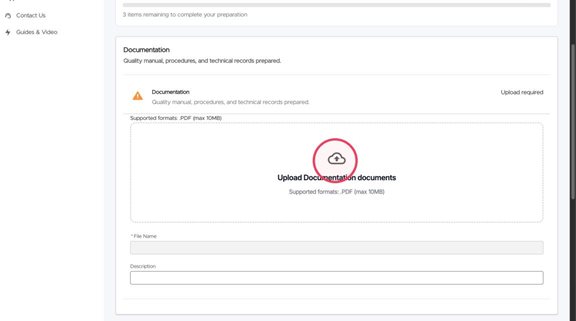
6. The "File Name" field will automatically be filled for you.
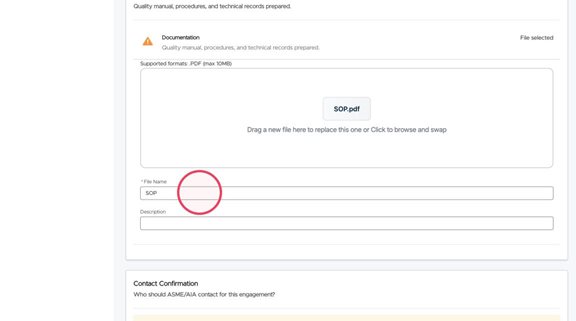
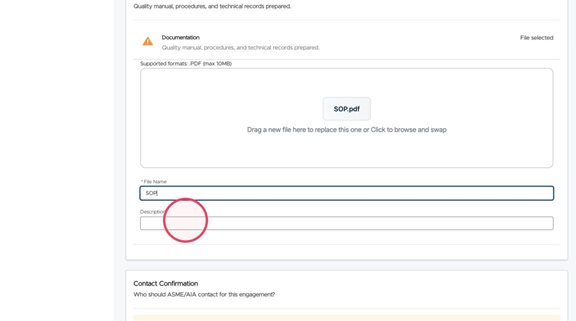
7. Click the "Description" field to provide some additional information to the auditor about your files, such as what the file is used for, or other relevant information for your audit.
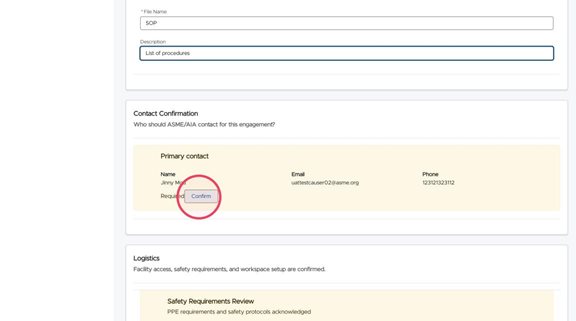
8. Click "Confirm" on the primary contact for the audit. This is by default the CA Connect user who is currently in the system. If you need to have a different contact for the audit, contact ASME.
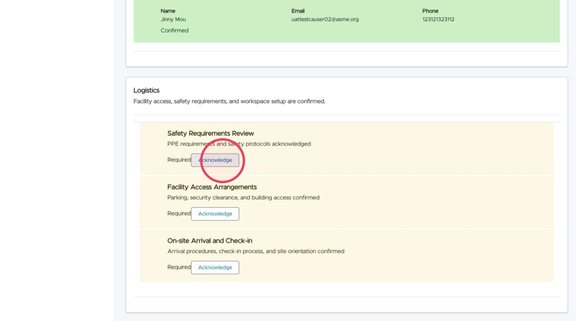
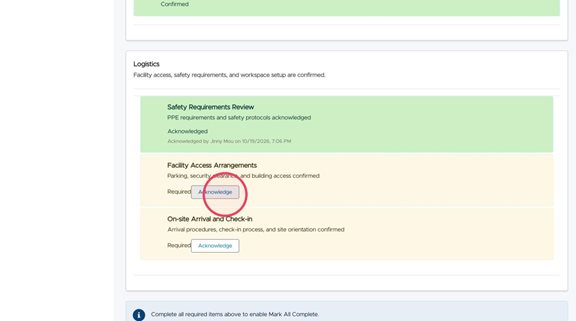
9. Click "Acknowledge" for the Safety Requirements, Facility Access, and On-Site Arrival and Check-in.
10.
11.
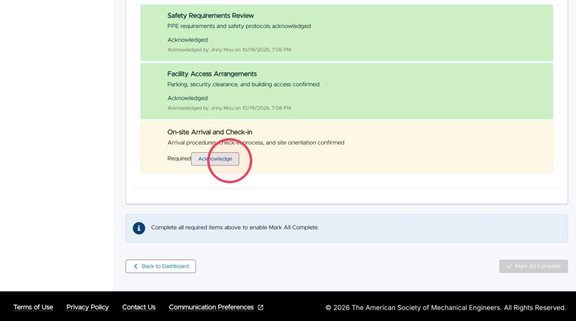
12. Once you have confirmed everything, click "Mark All Complete." This will notify everyone that all requirements have been met for the on-site visit.
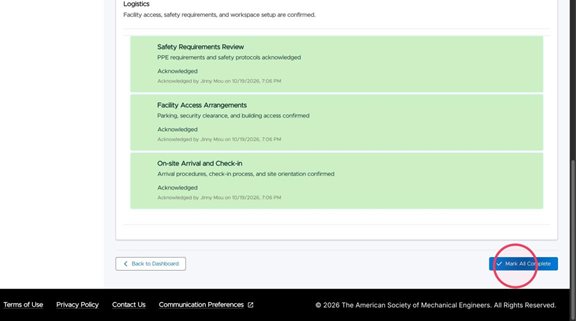
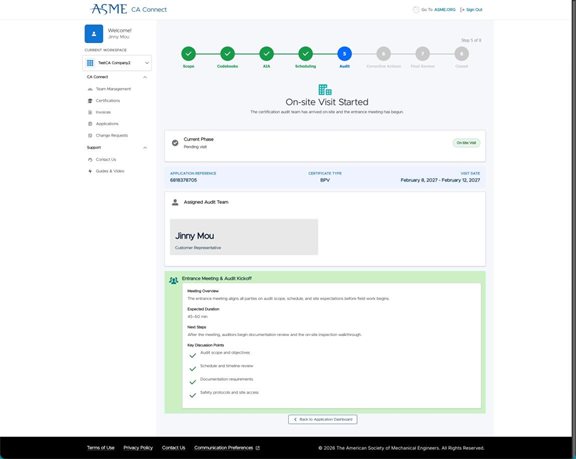
13. Your application will now reflect the Audit is ready to proceed. Review the audit team shown and the kickoff meeting checklist prior to the audit start date. If you need to make any changes, contact ASME staff as soon as possible.
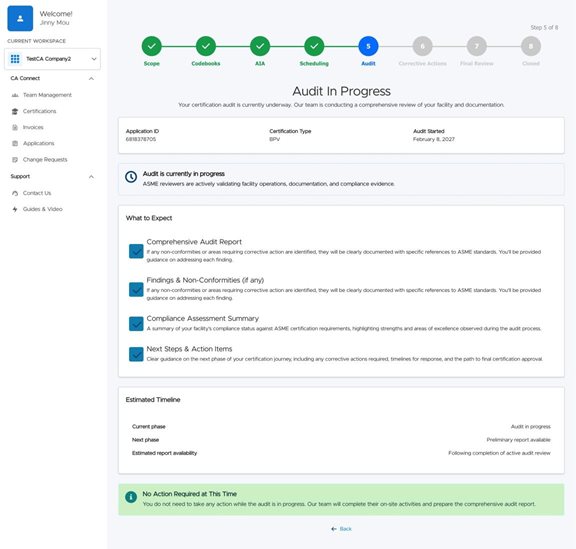
14. Once the audit is in-progress, the screen will update to reflect that. No action is required by you until the audit report is generated and any corrective actions are identified.
2. Click "Track progress or start new applications" to find your application in progress.
3. Click "View Details" on your active application.
4. Click "Prepare for Visit"
5. You will need to upload one or more documents to the portal in preparation for the audit. Types of documents to upload are Operating Procedures, Manuals, and technical records. Note the portal supports only PDF files up to a maximum of 10MB per file.
6. The "File Name" field will automatically be filled for you.
7. Click the "Description" field to provide some additional information to the auditor about your files, such as what the file is used for, or other relevant information for your audit.
8. Click "Confirm" on the primary contact for the audit. This is by default the CA Connect user who is currently in the system. If you need to have a different contact for the audit, contact ASME.
9. Click "Acknowledge" for the Safety Requirements, Facility Access, and On-Site Arrival and Check-in.
10.
11.
12. Once you have confirmed everything, click "Mark All Complete." This will notify everyone that all requirements have been met for the on-site visit.
13. Your application will now reflect the Audit is ready to proceed. Review the audit team shown and the kickoff meeting checklist prior to the audit start date. If you need to make any changes, contact ASME staff as soon as possible.
14. Once the audit is in-progress, the screen will update to reflect that. No action is required by you until the audit report is generated and any corrective actions are identified.