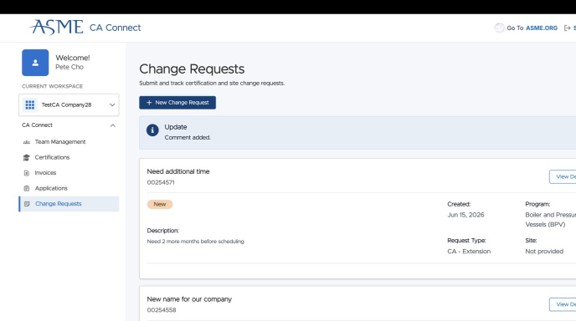
How to Submit a CA Connect Change Request
This guide walks you through the steps to submit a Change Request to an Application in the CA Connect portal. You must already have an ASME.org account and CA Connect access. To create an ASME.org account, please review the “Log In to CA Connect” guide.
How to Submit a CA Connect Change Request
⚠️ NOTE: Please create a Change Request for requesting updates to company information, previously issued Certifications, in progress Applications, uploading Code Book Proofs of Purchase, or other CA-related items. For any login or ASME.org account issues, please contact ASME Customer Care.1. Navigate to the CA Connect home page. Ensure you are accessing the correct company workspace if you have access to more than one company.
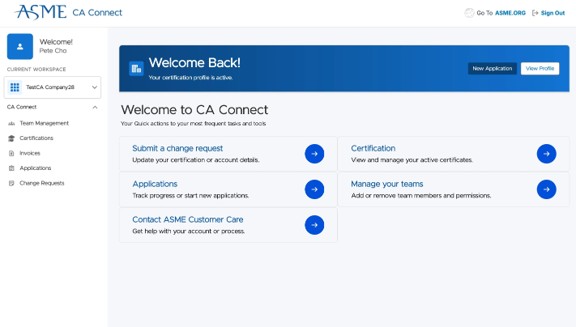
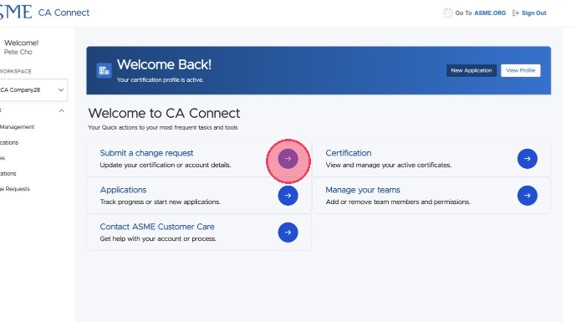
2. Select the "Submit a change request" link.
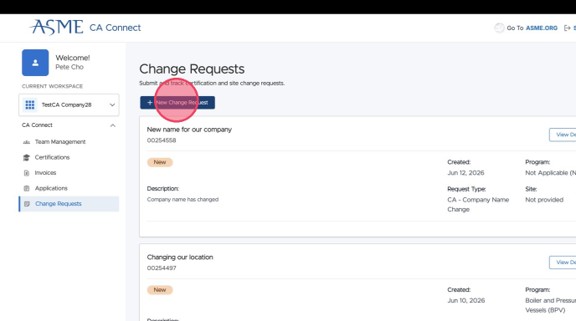
3. Click "+ New Change Request" and a new Change Request form will open.
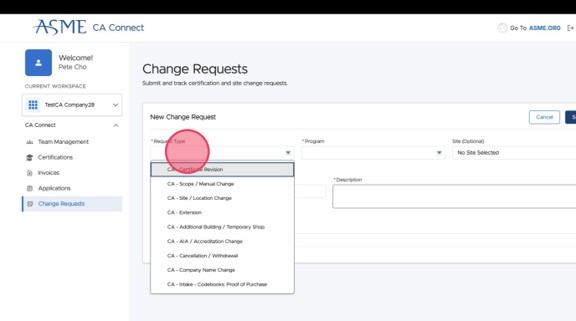
4. Select the appropriate Change Request Type for your situation. See below for a list of Change Request Types and what they mean.
|
Change Request Type |
Definition |
| Certificate Revision | Notify/Request ASME of a revision to your certificate |
| Scope / Manual Change | Notify ASME of a Scope change or a change in your manual |
| Site / Location Change | Notify ASME of another location where work is taking place or let ASME know if that location has changed |
| Extension | Request to extend your certification |
| Additional Building / Temporary Shop | Notify ASME about any work being done in an additional building/temp shop |
| AIA / Accreditation Change | Request to change AIA or accreditation |
| Cancellation / Withdrawal | Notify ASME about cancelling your review or withdrawing your application |
| Company Name Change | Request to Change Legal Company Name |
| Intake - Codebooks: Proof of Purchase | Notify ASME of code-book purchases made from another vendor |
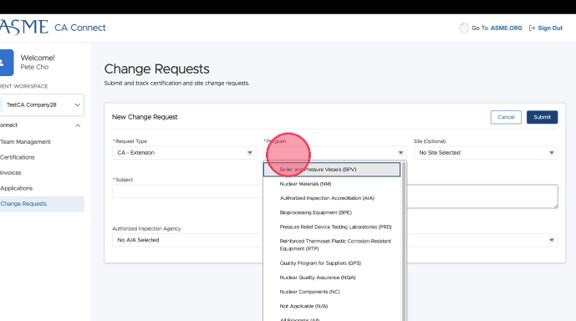
5. Select the appropriate Program from the dropdown for your Change Request Type. Some Change Requests apply to a single Program, some apply to All Programs, and some apply to none (“N/A”). If unsure, select “N/A.” Optional: Select the related Site location for your Change Request, if applicable.
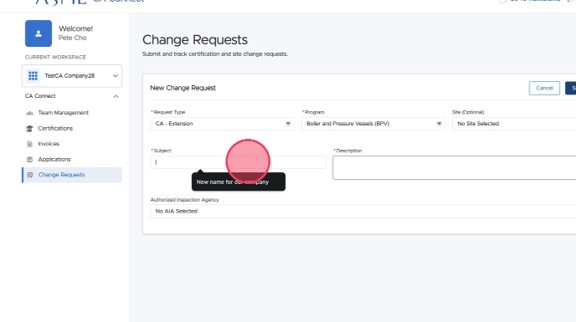
6. Enter the Subject and Description of your request. The Subject is a very short summary of your request or issue. There is a limit of 255 characters. The Description is a place for you to enter more detailed information.
⚠️NOTE: Include your certificate/application number if known, any affected facility/location, requested change, effective date(s), and any supporting context. Do not include any sensitive payment or password information.
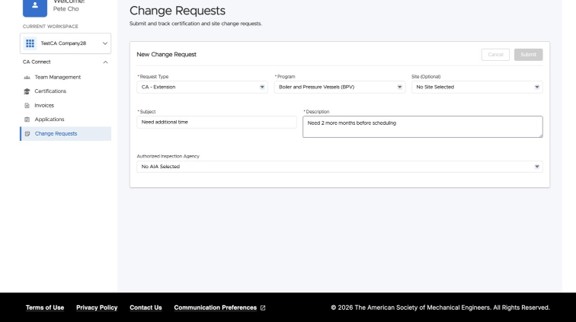
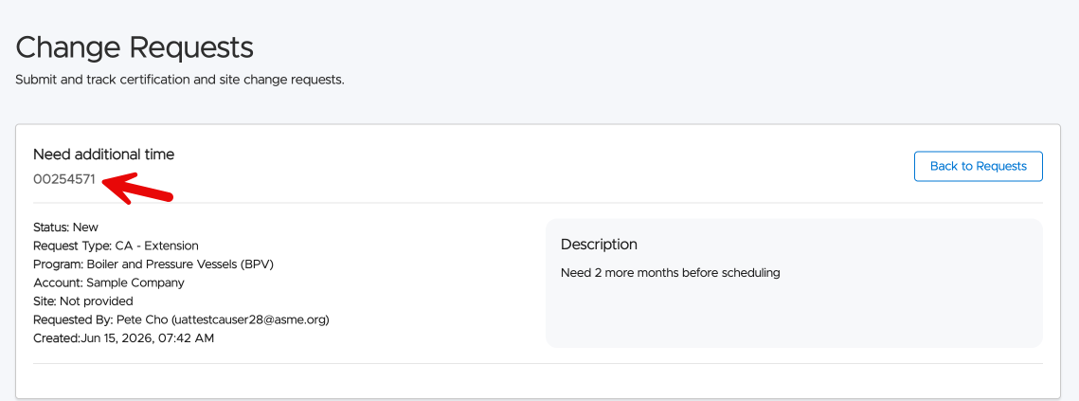
7. Click "Submit" to create your request. Once your request is submitted you will see your Request Number underneath the subject. You can refer to that number for any interaction with ASME Customer Care.
Documentation and Submission
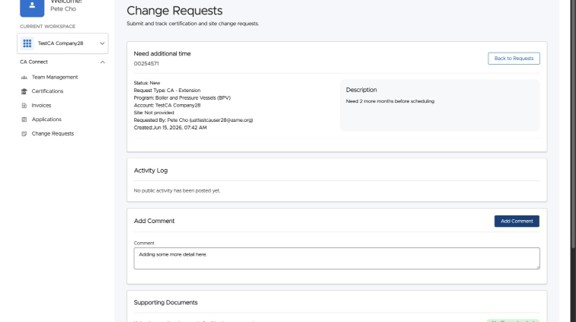
8. Once your request has been submitted, you will have the ability to add Comments or Upload Files as needed, and ASME Staff will review or request additional information as needed.
⚠️NOTE: ASME Staff will use Comments to provide feedback and update you on the status of your request. You will be notified by email of any updates, and you can login to review the comments and provide any supporting information or documents as needed.
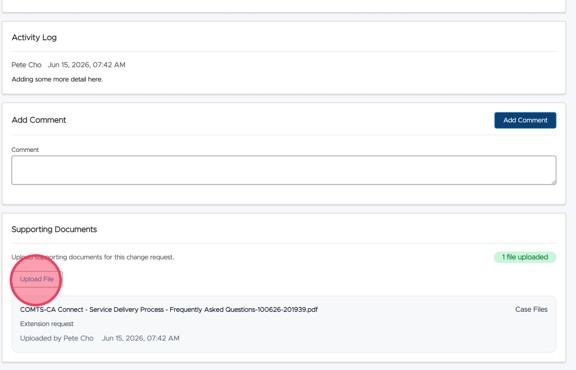
9. If uploading supporting documents, click the “Upload File” button and select a local file.
⚠️NOTE: File size upload is limited to 2GB.
10. Select a file on your computer to upload.
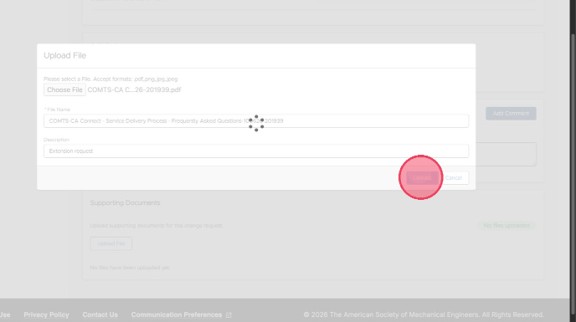
11. Enter a short description of the uploaded file, which will assist ASME staff in completing your change request. The file name will be populated automatically. Example description: “Proof of Purchase of Complete ASME 2025 BPVC”
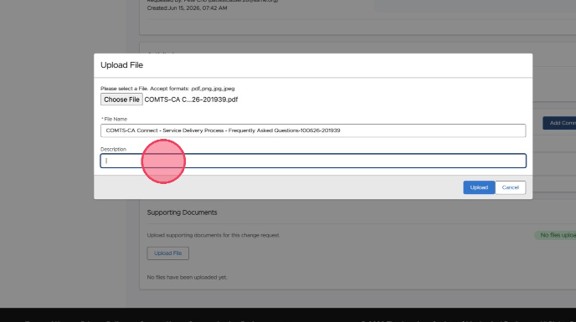
12. Click "Upload" and after the upload is completed, a confirmation will appear. If the upload fails for any reason, please try again, or reach out directly to ASME Customer Care with the Change Request number shown in the list.
13. Navigate back to "Change Requests" list to see all Change Requests, their Request number, Status, Submitted Date, and next action. If charges may apply after ASME review, pyment is only requested after changes are finalized.