How to Invite a New Member to CA Connect
This guide walks you through the steps to invite a member to your team using the CA Connect portal. You must already have an ASME.org account and CA Connect Admin Role access. To create an ASME.org Account, please review the “Log In to CA Connect” guide.
How to Invite a New Member to CA Connect
1. Navigate to the CA Connect home page.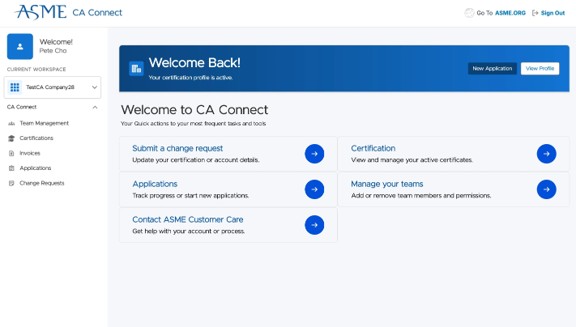
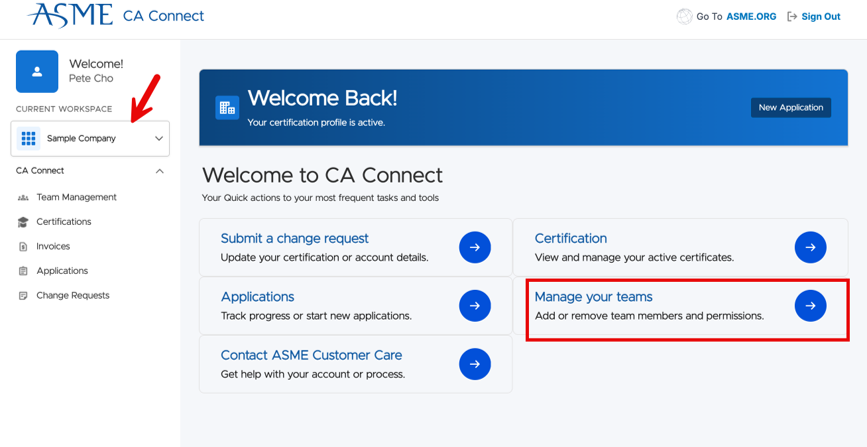
2. Select "Team Management" from the sidebar or "Manage your teams" from the home page. Also confirm that your company name is correct in the Current Workspace, if you have access to more than one company.
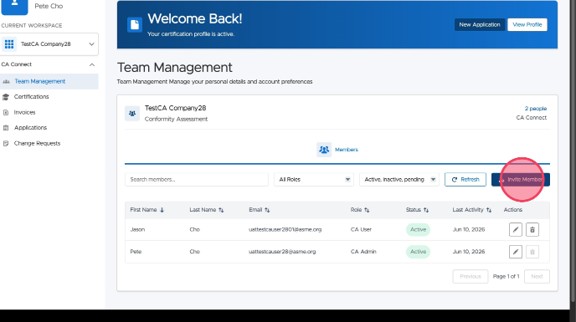
3. Click "Invite Member" and you will see the “Invite Member” window.
4. Enter the new member's name and email address and click "Send Invite." Use the team member’s company email, and the email should match the email on their ASME.org account. If the email is already associated to an existing user or a pending user, you will get an error message.
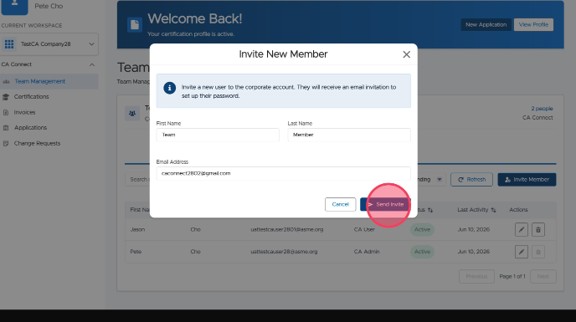
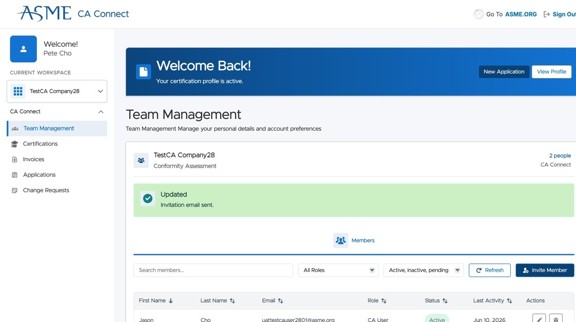
5. The invitation email gets sent. The invitee should look for a new email from ASME Customer Care. Check the Spam or Junk folder if they don’t see it. If there are any issues with the email, please contact ASME Customer Care.
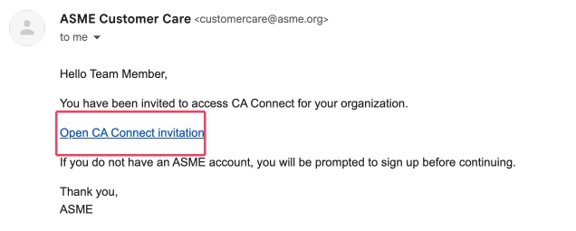
6. The new member will get an email invitation from ASME and click the link.
7. If they do not yet have an ASME account, they will need to sign up with their info and their company's name and primary address. NOTE: They will need to sign up with the exact company name and address provided in the invitation. This ensures their account is correctly associated to their company. Please follow the steps in the Log In to CA Connect guide to create a new ASME.org account if needed. If there are any problems with their ASME.org account creation or CA Connect access, please reach out to Customer Care.
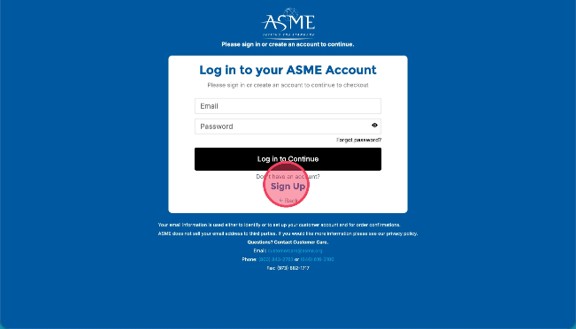
8. Once they have signed up for an ASME account, they will get access to CA Connect once any company approval is granted.
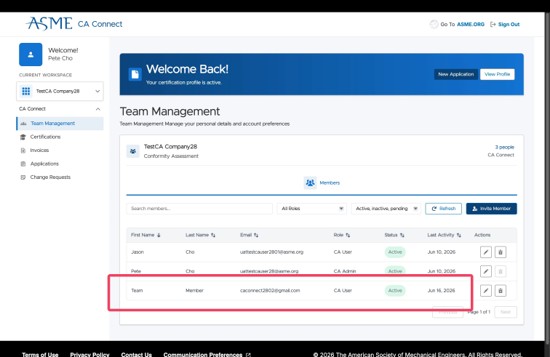
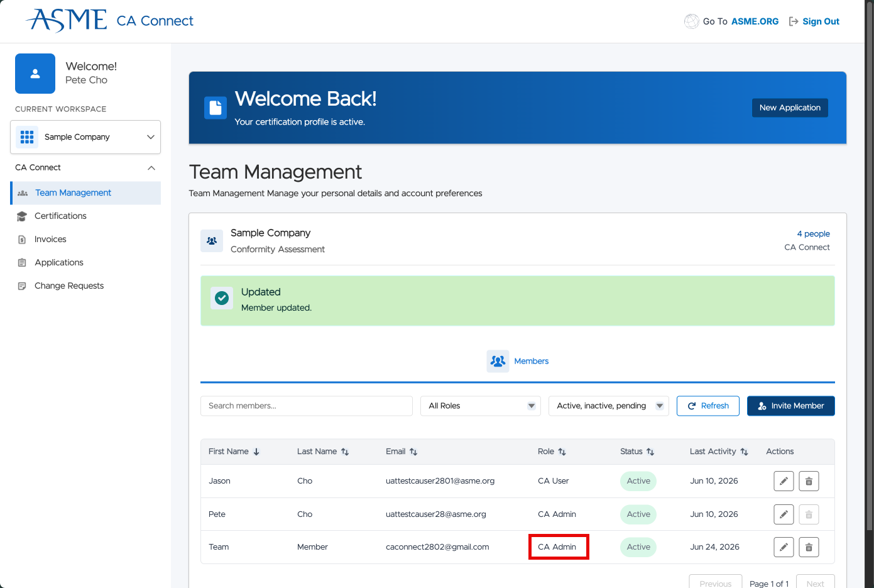
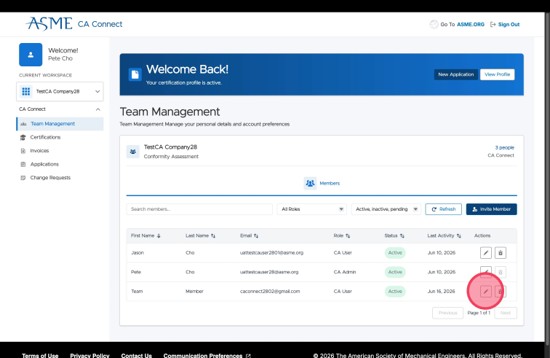
9. If desired, you can make this team member a CA Connect Admin clicking the pencil icon next to their name. NOTE: The Admin Role grants additional permissions for the selected company, including signing documents and adding and removing additional team members.
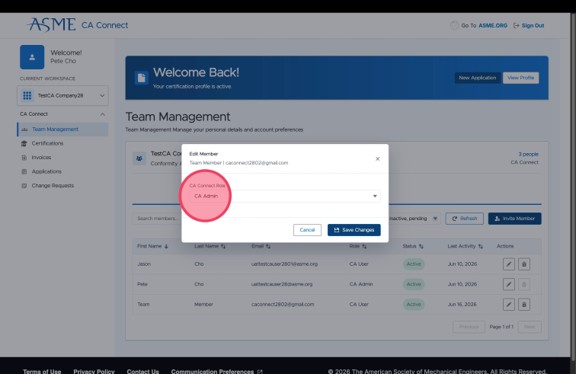
10. Select the CA Admin role from the dropdown and click Save Changes.
11. The team member will appear with the new Admin role in the member list.