How to Submit Corrective Actions in CA Connect
Learn the process for accessing your audit report and if necessary, submitting corrective action documentation through the ASME CA Connect portal. You must already have an ASME.org account and CA Connect Admin Role access, and you must have already submitted an application. To create an ASME.org Account, please review the “Log In to CA Connect” guide.
1. Navigate to the CA Connect Home Page.
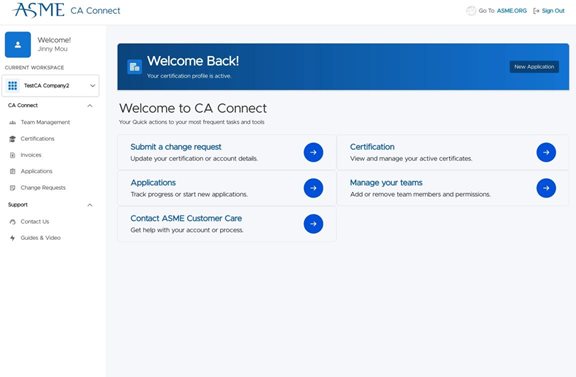
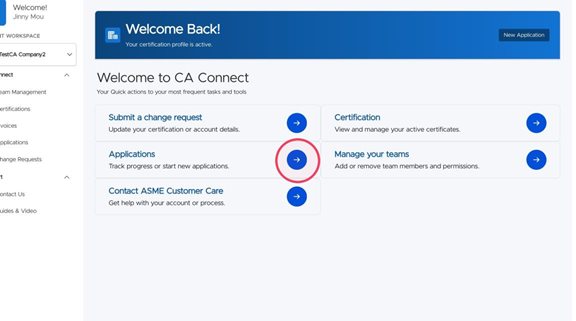
2. Click "Track progress or start new applications" to find your application in progress.
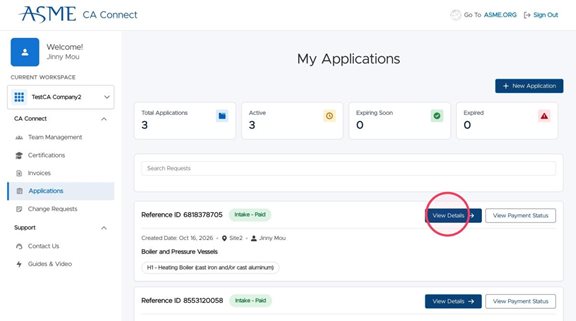
3. Click "View Details" on your active application.
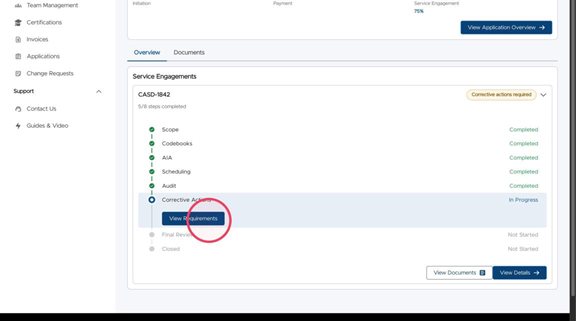
4. Click "View Requirements" to see any corrective actions that may be needed.
5. Click "Download Report" to see your preliminary audit report with any identified corrective actions.
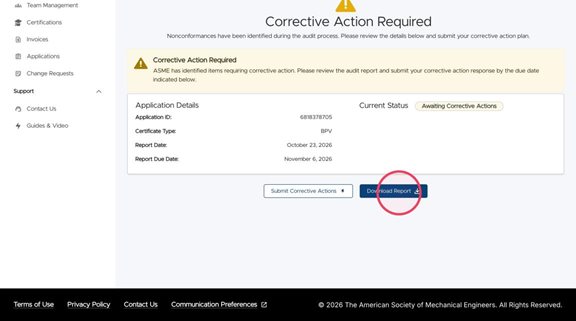
6. Click "Submit Corrective Actions" to submit specific documentation for each of the corrective actions identified in the report.
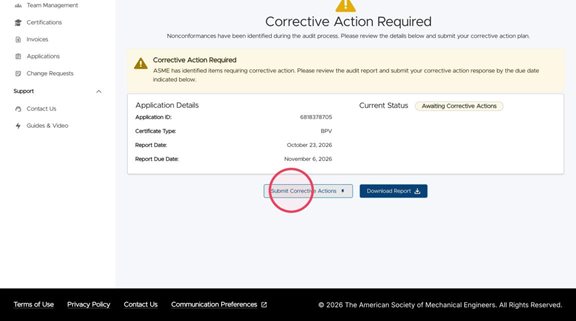
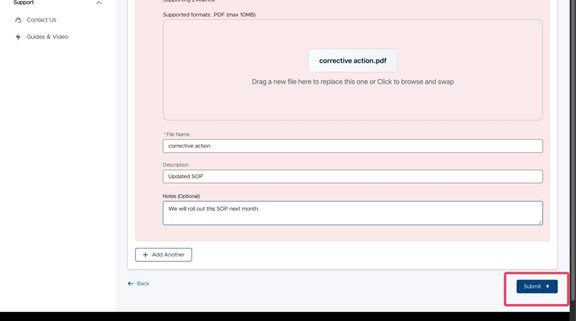
7. Click the upload file icon. Shown here is a file already uploaded.
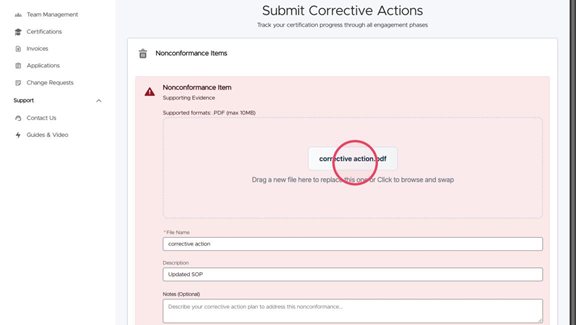
8. Add any relevant notes for the uploaded document. This will assist the audit team in ensuring your corrective actions have addressed the issues identified in the report. You can upload as many documents as needed.
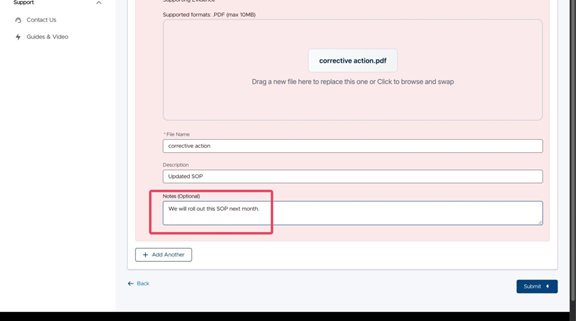
9. Click "Submit" once all your corrective actions have been addressed.
10. The audit team will be notified by email that your corrective actions have been uploaded and will contact you when it is time to review the final report.
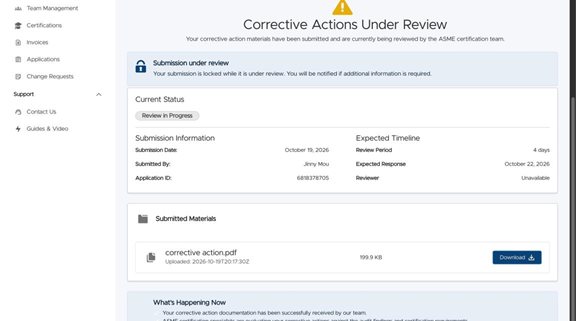
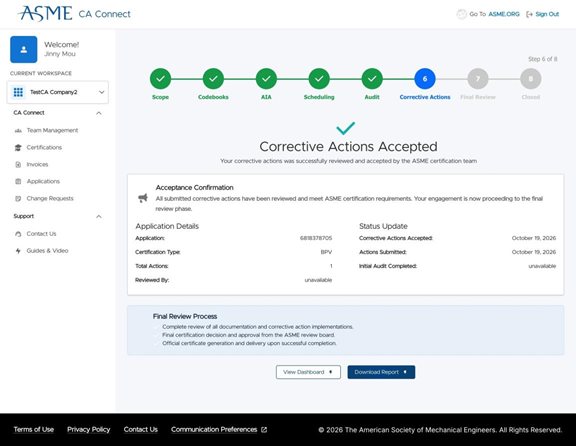
11. Once the team has reviewed the corrective actions, you will be notified and your application will be updated. You may be asked for additional supporting material, and if so, you will return to step 6. If your corrective actions are accepted, you will move forward with your application and be shown the screen below.
Alternatively, if a full re-audit is required, you will be notified of that too, and you will return to the scheduling process.
2. Click "Track progress or start new applications" to find your application in progress.
3. Click "View Details" on your active application.
4. Click "View Requirements" to see any corrective actions that may be needed.
5. Click "Download Report" to see your preliminary audit report with any identified corrective actions.
6. Click "Submit Corrective Actions" to submit specific documentation for each of the corrective actions identified in the report.
7. Click the upload file icon. Shown here is a file already uploaded.
8. Add any relevant notes for the uploaded document. This will assist the audit team in ensuring your corrective actions have addressed the issues identified in the report. You can upload as many documents as needed.
9. Click "Submit" once all your corrective actions have been addressed.
10. The audit team will be notified by email that your corrective actions have been uploaded and will contact you when it is time to review the final report.
11. Once the team has reviewed the corrective actions, you will be notified and your application will be updated. You may be asked for additional supporting material, and if so, you will return to step 6. If your corrective actions are accepted, you will move forward with your application and be shown the screen below.
Alternatively, if a full re-audit is required, you will be notified of that too, and you will return to the scheduling process.