How to Create a new CA Connect Application
This guide walks through the process of creating a new or renewal Conformity Assessment application on the CA Connect portal. You must already have an ASME.org account and CA Connect access. To create an ASME.org account, please review the “Log In to CA Connect” guide.
How to Create a new CA Connect Application
1. Navigate to the CA Connect home page.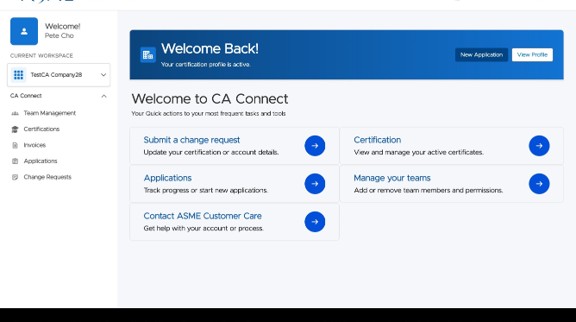
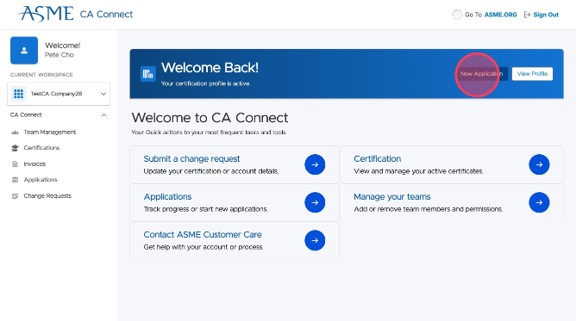
2. Click "New Application" from the dashboard.
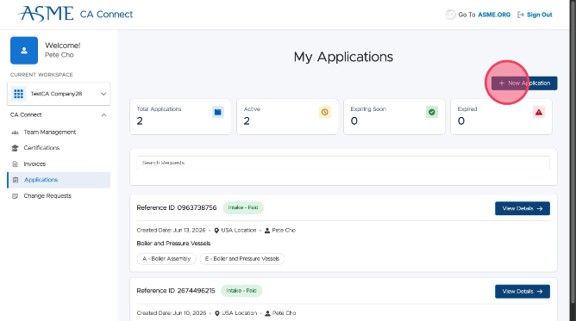
3. Click "+ New Application" on the My Applications page. You can see any existing in-progress applications here. You may want to continue an already in-progress application or start a new one, depending on the certification. If you’re not sure, you can submit a Change Request. Instructions to do this are in the “Submit a Change Request” guide.
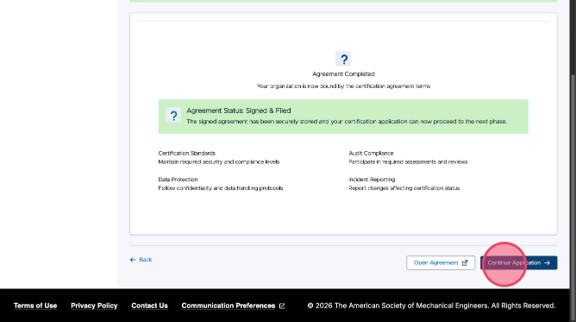
4. If you are a designated Company Admin, you have the ability to review and sign the company’s agreement with ASME. You must be an authorized legal representative of the company and able to enter into agreements on behalf of the company. Once the agreement is signed, select "Continue Application."
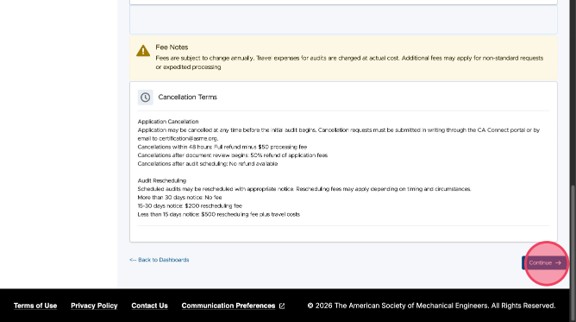
5. Review the policies for certification and click "Continue" to proceed.
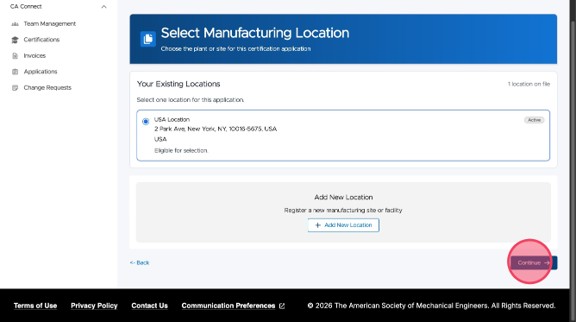
6. Select your manufacturing location. The location is pre-populated with company’s primary address. You can create a new location here if the desired location for certification is not shown.
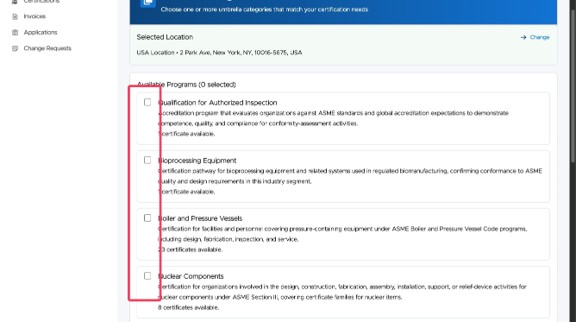
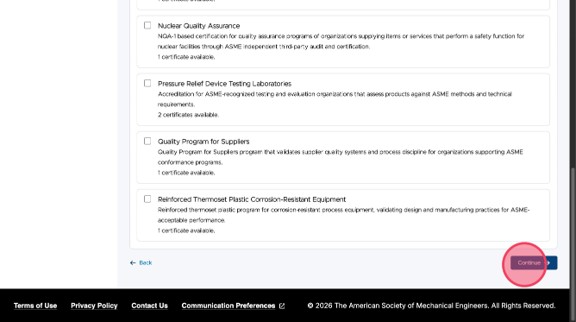
7. Choose from the available programs. Each program has one or more certification packages available, as shown below the Program description. The Programs available depend on your location, as not all programs are available in all locations.
⚠️ NOTE: You can select multiple programs here if desired - see Step 9.
8. Click "Continue" to proceed.
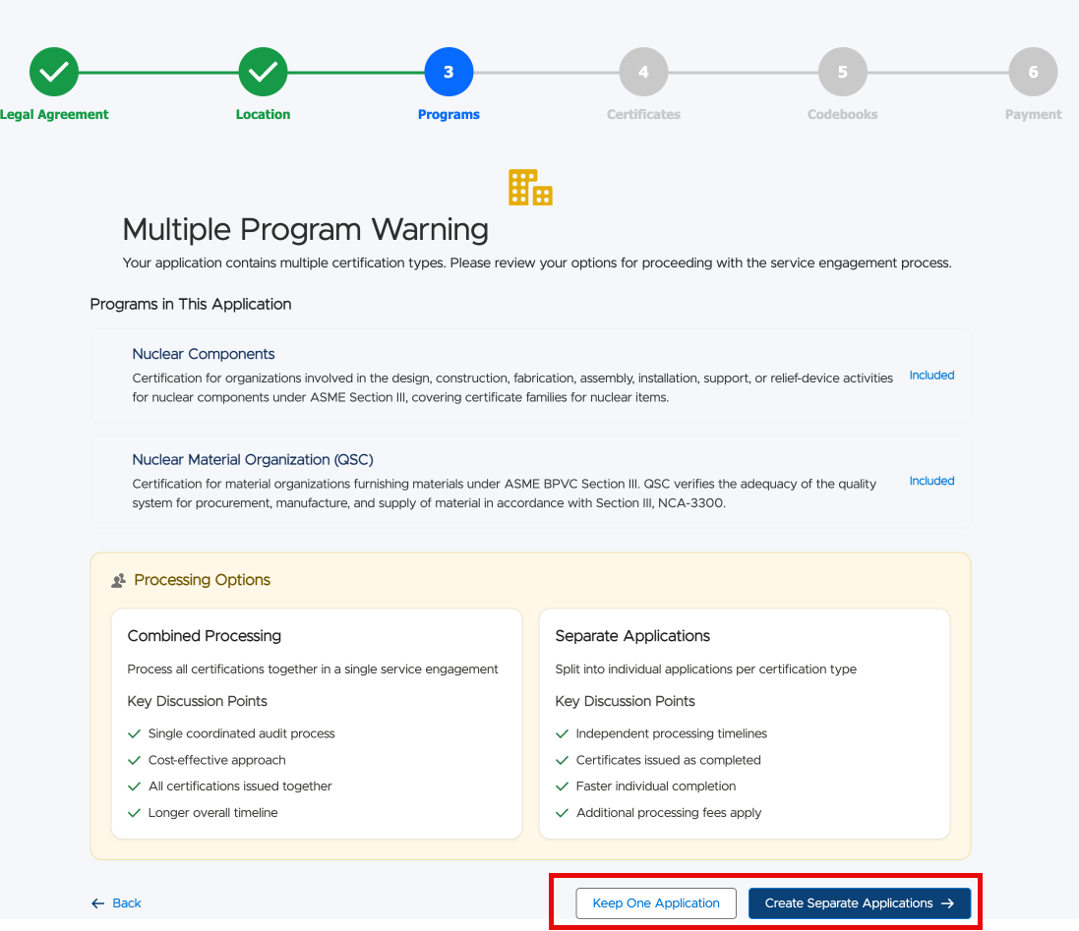
9. OPTIONAL: If you have selected multiple programs, you will see the below screen – you can choose to keep everything in a single application or split each program into individual applications. See below for the key points for each option, and choose one of the options to proceed.
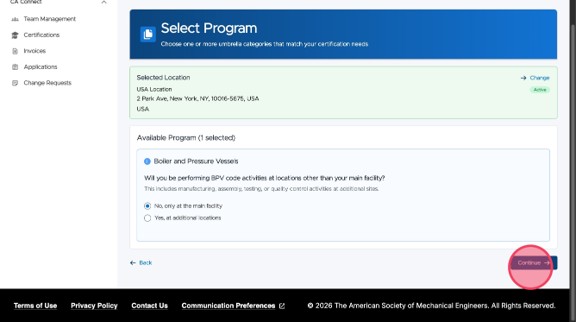
10. Once you have selected your program, you can choose which location your certification will apply to.
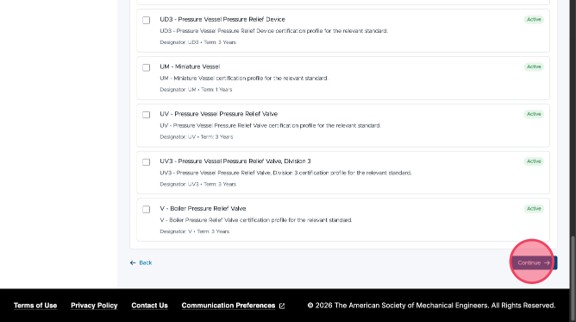
11. Select your desired certificates available for your program. Certificates/Designators are the specific authorization outcomes requested under the selected program, and later steps may ask for specific Scope, Additional Locations, AIA/Oversight information, and required codebooks.
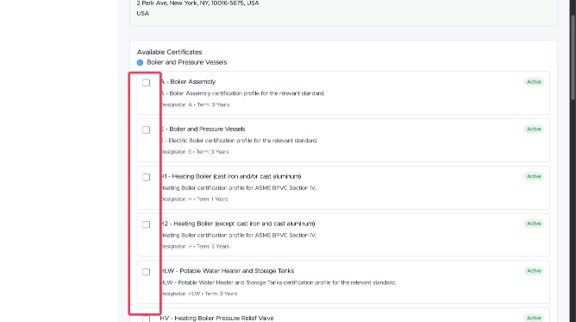
12. Click "Continue"
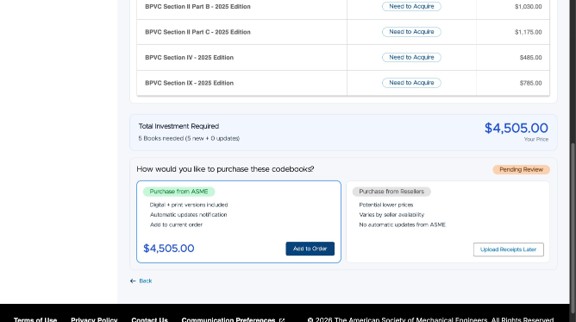
13. The system determines the required codebooks/standards based on what certificates have been selected in the previous step. You can purchase them from ASME or from a reseller. If you choose to purchase from a reseller, your purchase receipt will need to be verified by ASME Staff, and your application will enter a Review status before payment can proceed.
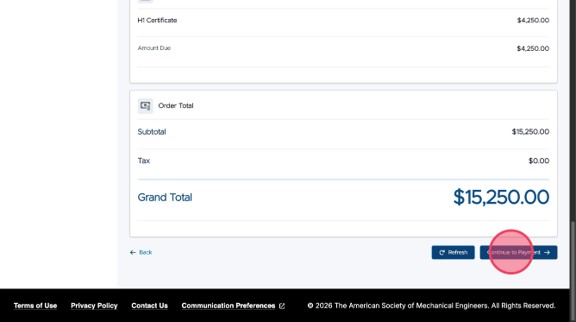
14. Review your entire application before selecting "Continue to Payment." You must complete the entire application, including the signed agreement. If any changes need to be made to your application, this is the time. It may take a minute or two for your order to generate, please be patient.
⚠️ NOTE: Once payment has been completed, your application is locked and changes can only be made by ASME staff. If you have any questions about your in-progress application before making payment, contact ASME Customer Care.
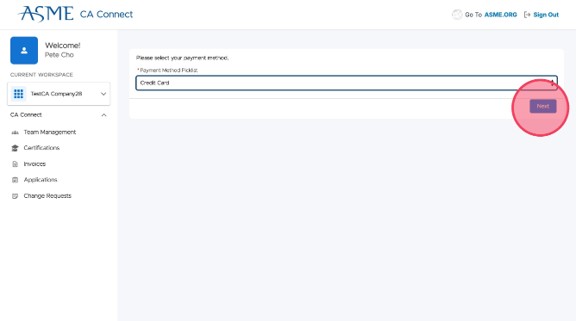
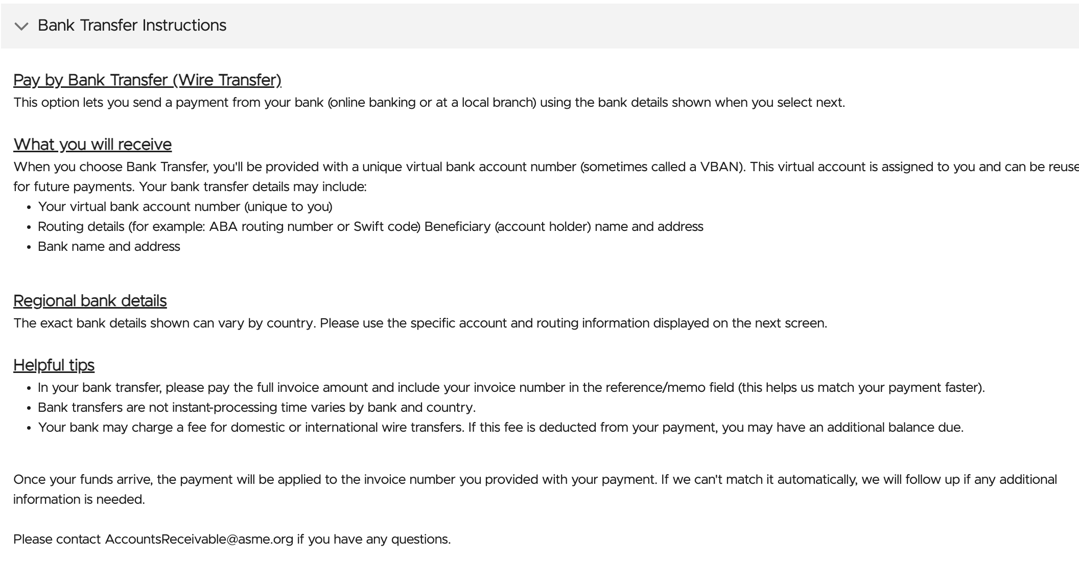
15. Select your desired payment method and click "Next." Currently accepted payment methods are Credit Card and Bank Transfer. Transfer instructions are provided on screen. If you have any question about payments, please contact ASME Customer Care.
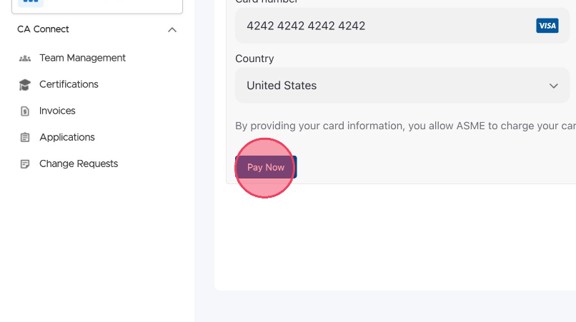
16. Enter your payment information and click "Pay Now."
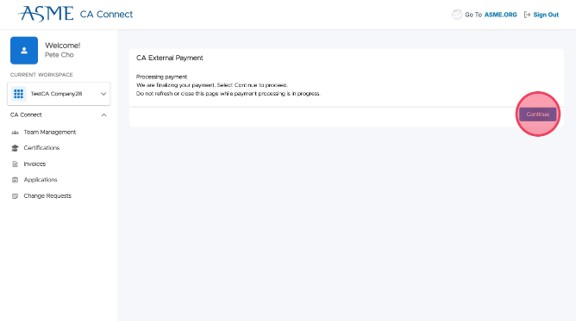
17. Click "Continue" to finalize the payment processing. ASME will need to verify and review the payment and confirm the payment transfer. The application advances only after ASME records the payment outcome.
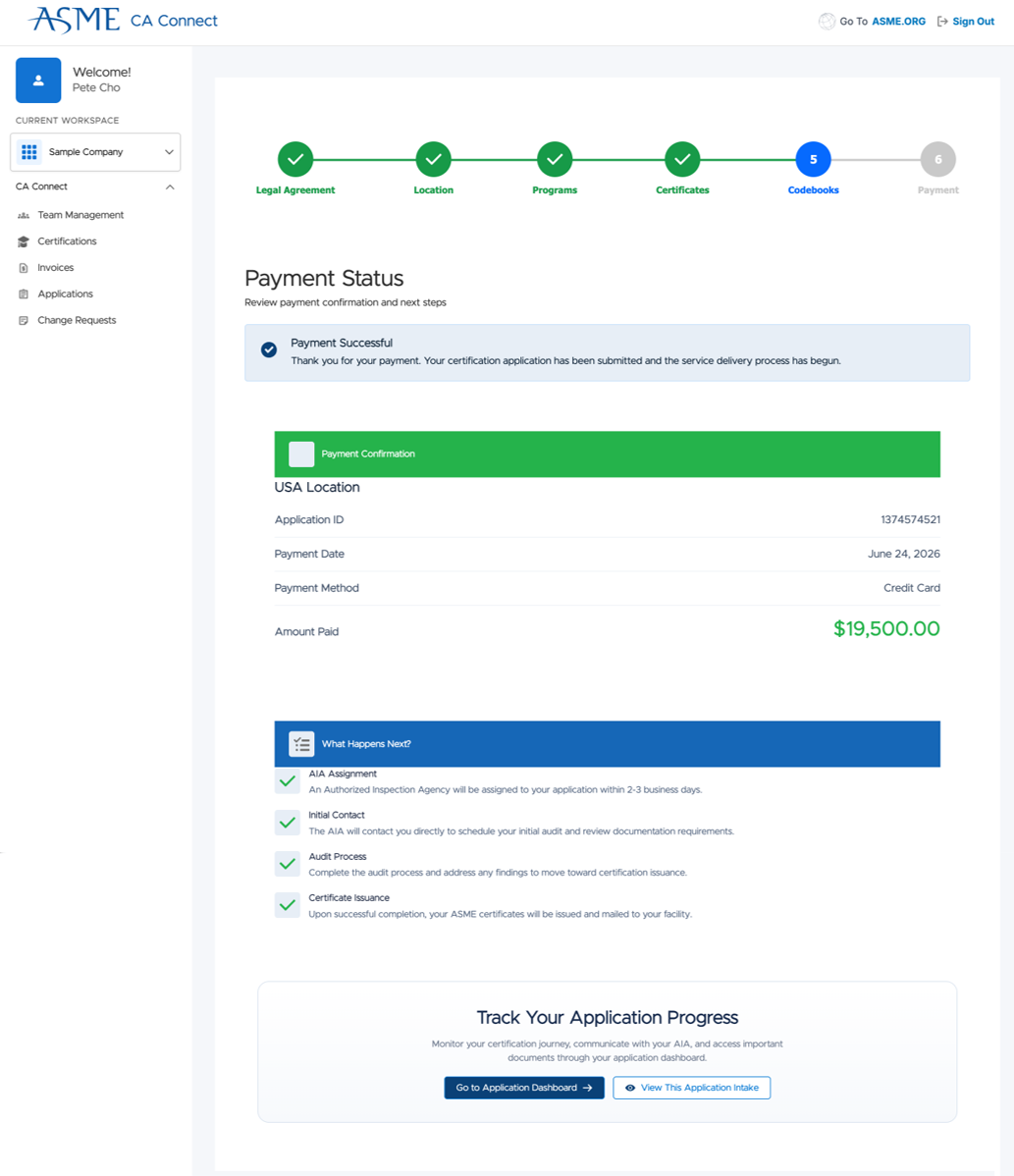
18. The payment confirmation screen will appear. Select continue.

19. Your application has been submitted. You will be contacted for next steps.