How to Submit Your Audit Availability
Learn how to submit your availability windows for a certification audit. You must already have an ASME.org account and CA Connect Admin Role access, and you must have already submitted an application. To create an ASME.org Account, please review the “Log In to CA Connect” guide.
1. Navigate to the CA Connect Home Page.
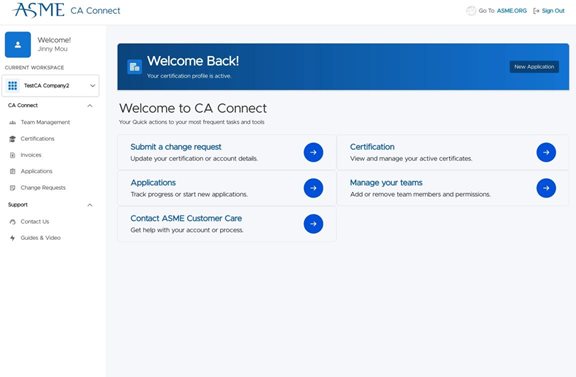
2. Click "Track progress or start new applications" to find your application in progress.
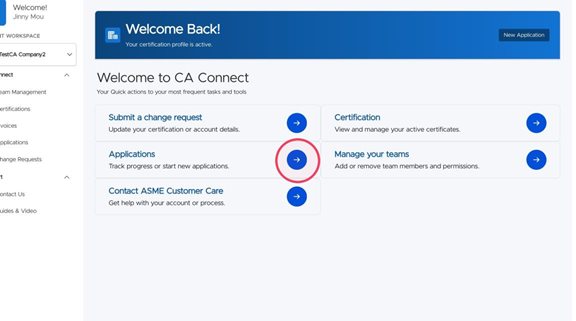
3. Click "View Details" on your active application.
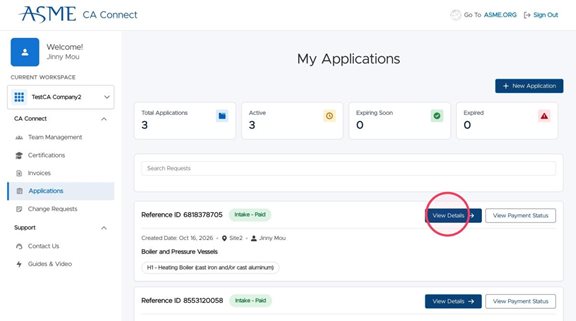
4. Click "Provide Availability" or the "View Details" button.
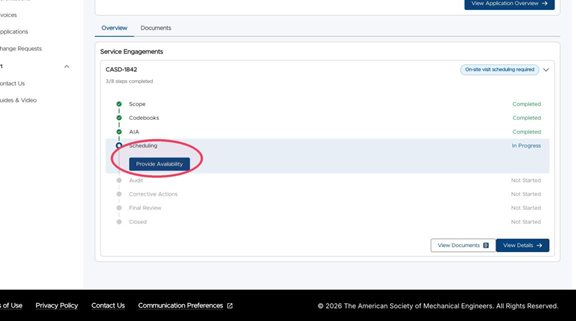
⚠️You are required to provide three availability windows that are at least 90 days in the future from the current date. Each window must be a minimum of three (3) full days. The system does not take into account any holidays, so be sure to allow enough time when providing your dates. ⚠️
5. For Availability Window 1, click the "Available From" field to provide the start of your availability window.
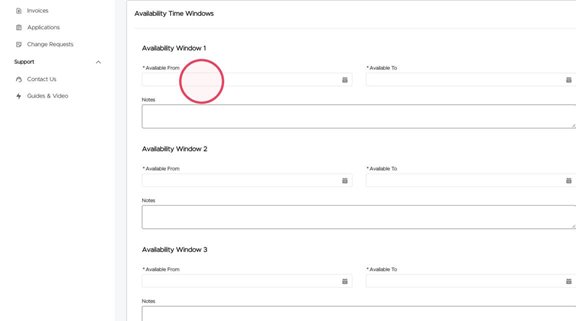
6. Select a start date from the calendar at least 90 days away from the current date.
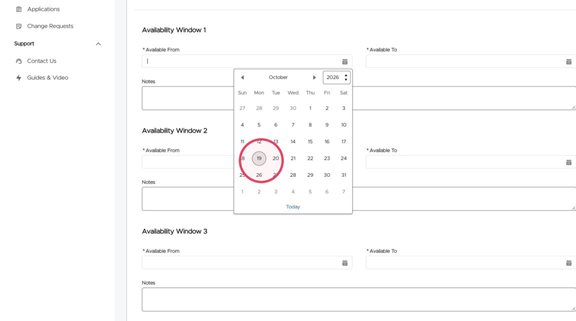
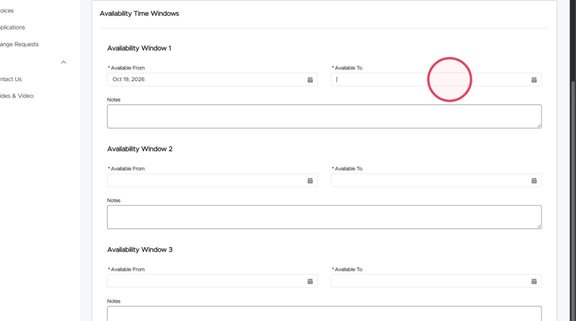
7. Click the "Available To" field. Select an end date at least 3 days later than the start date from the calendar.
8. If there are any additional details about those availability dates you'd like to provide, you can optionally add them to the "Notes" field.
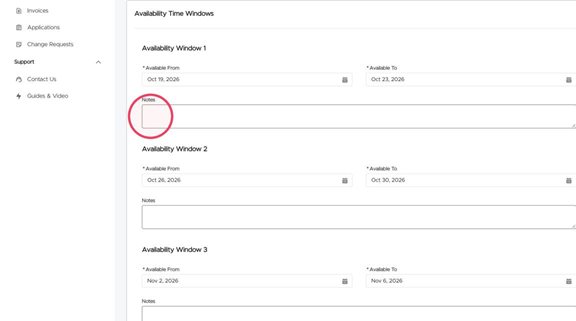
9. Repeat the previous steps for the other availability windows.
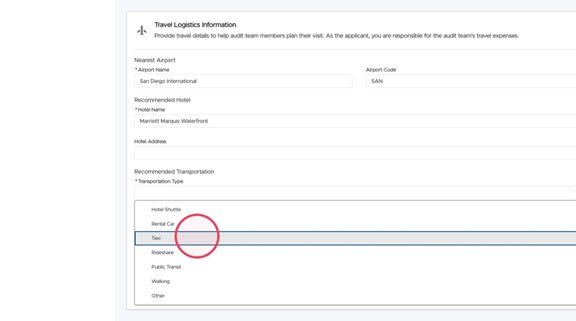
10. Move to the Travel Logistics section.
11. Click the "Airport Name" field and add the name of your closest airport. If you have multiple airports, you can add them to the "Additional Transportation Details" field below.
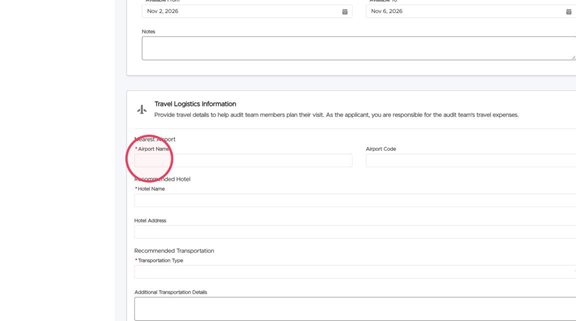
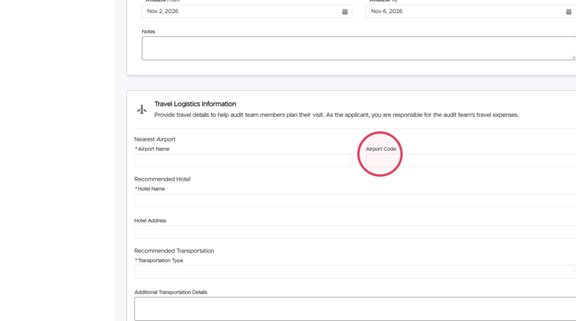
12. Click the "Airport Code" field and add the three-letter IATA airport code.
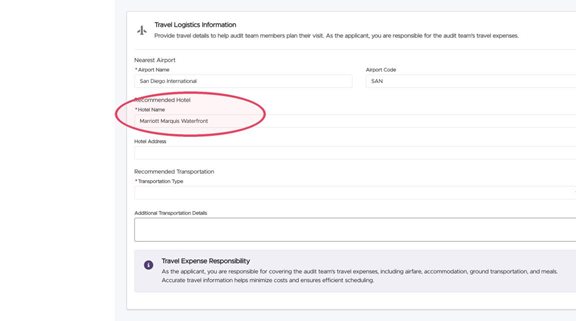
13. Add your recommended hotel and optionally the hotel address. If you have more than one, you can add them to the "Additional Transportation Details" field below.
14. Click the "Recommended Transportation" dropdown.
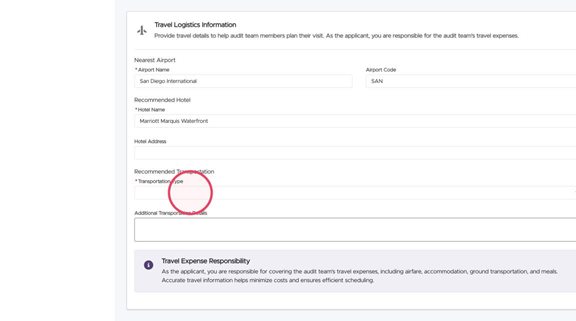
15. Select the best transportation option from the airport to the hotel. If you have more than one, you can add them to the "Additional Transportation Details" field below.
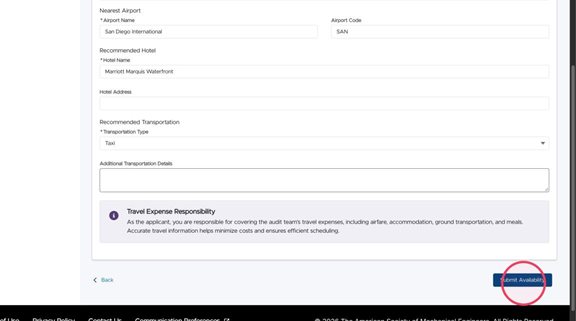
16. Once you have entered all the information, click "Submit Availability"
17. You have now submitted your availability. Your AIA (if selected) and the ASME Scheduling team will be notified by email that you have provided your availability windows.
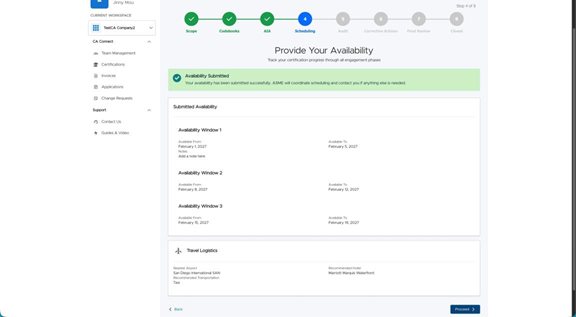
18. You will be able to see who has confirmed their availability to overlap with your provided windows. Once all parties have confirmed, you will be notified by email to proceed with your application.
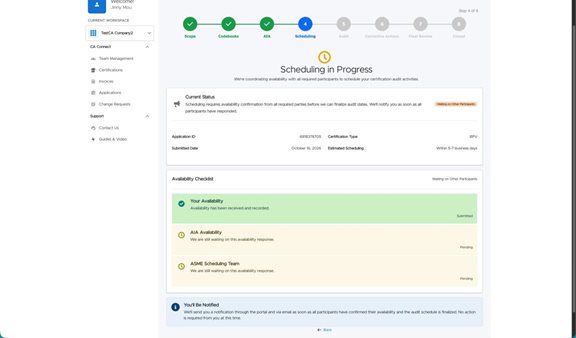
19. This screen will update once all parties have confirmed.
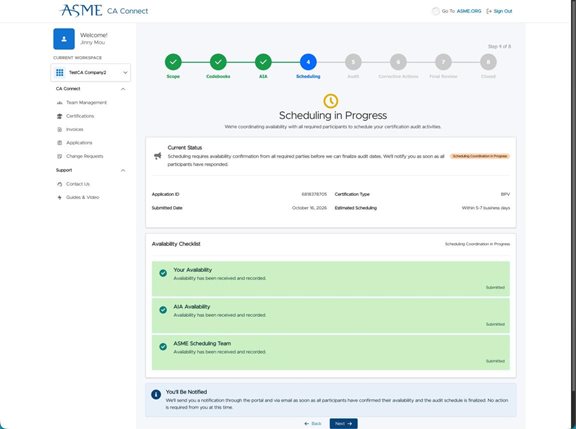
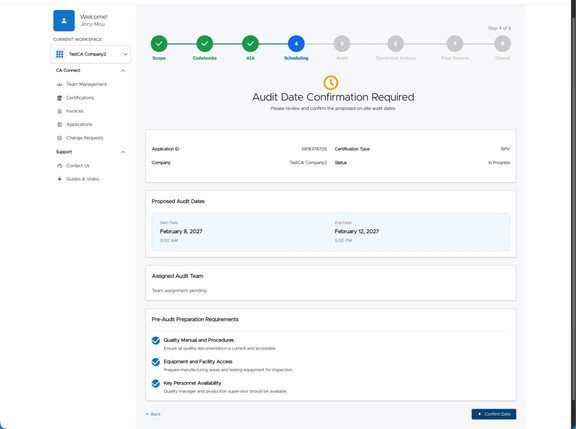
20. You will need to confirm your proposed audit dates and ensure the audit team will have access to the equipment and facility that is being certified.
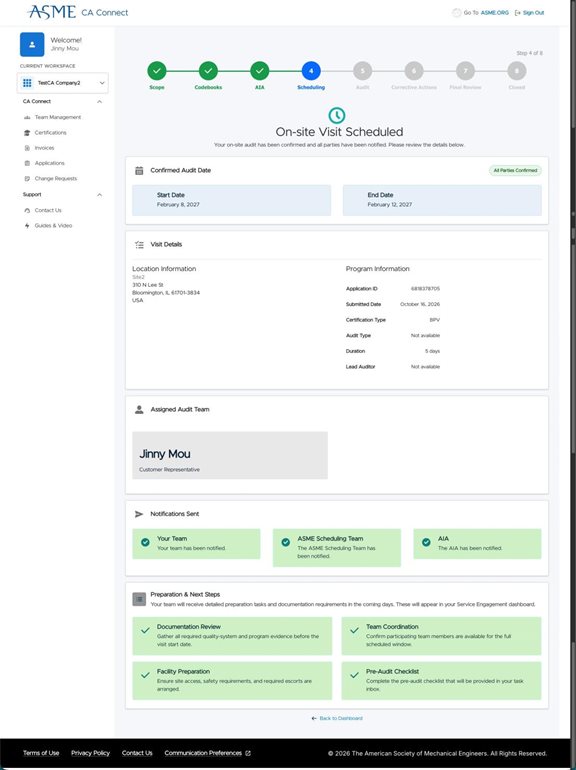
21. Once the visit has been scheduled, you will receive an email confirmation and the application will update, and include your assigned audit team.
2. Click "Track progress or start new applications" to find your application in progress.
3. Click "View Details" on your active application.
4. Click "Provide Availability" or the "View Details" button.
⚠️You are required to provide three availability windows that are at least 90 days in the future from the current date. Each window must be a minimum of three (3) full days. The system does not take into account any holidays, so be sure to allow enough time when providing your dates. ⚠️
5. For Availability Window 1, click the "Available From" field to provide the start of your availability window.
6. Select a start date from the calendar at least 90 days away from the current date.
7. Click the "Available To" field. Select an end date at least 3 days later than the start date from the calendar.
8. If there are any additional details about those availability dates you'd like to provide, you can optionally add them to the "Notes" field.
9. Repeat the previous steps for the other availability windows.
10. Move to the Travel Logistics section.
11. Click the "Airport Name" field and add the name of your closest airport. If you have multiple airports, you can add them to the "Additional Transportation Details" field below.
12. Click the "Airport Code" field and add the three-letter IATA airport code.
13. Add your recommended hotel and optionally the hotel address. If you have more than one, you can add them to the "Additional Transportation Details" field below.
14. Click the "Recommended Transportation" dropdown.
15. Select the best transportation option from the airport to the hotel. If you have more than one, you can add them to the "Additional Transportation Details" field below.
16. Once you have entered all the information, click "Submit Availability"
17. You have now submitted your availability. Your AIA (if selected) and the ASME Scheduling team will be notified by email that you have provided your availability windows.
18. You will be able to see who has confirmed their availability to overlap with your provided windows. Once all parties have confirmed, you will be notified by email to proceed with your application.
19. This screen will update once all parties have confirmed.
20. You will need to confirm your proposed audit dates and ensure the audit team will have access to the equipment and facility that is being certified.
21. Once the visit has been scheduled, you will receive an email confirmation and the application will update, and include your assigned audit team.